


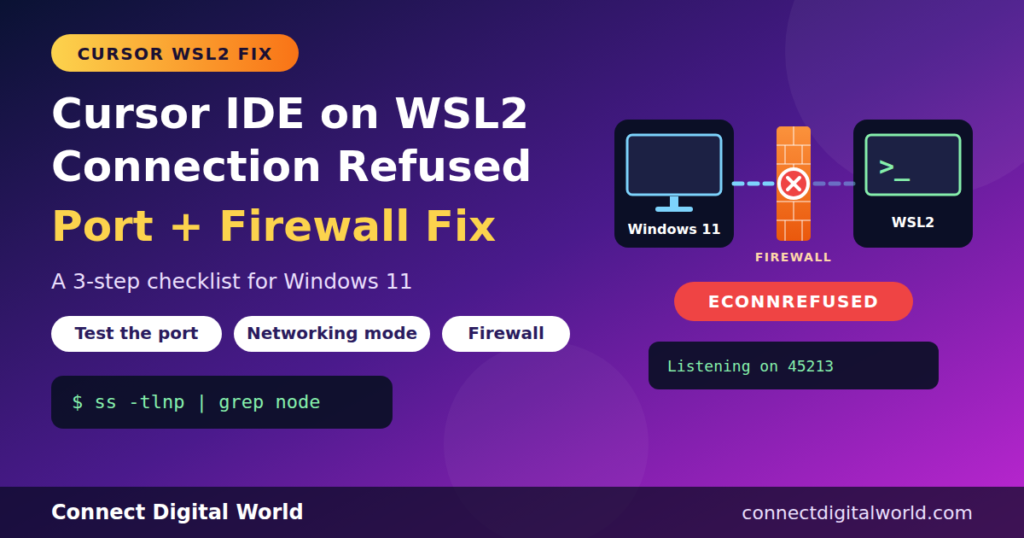
Imagine you walk to school to meet your teacher. She is waiting in a classroom, but she tells you a different room number every morning. You arrive, knock on the door she named, and nothing happens. Either the door is locked, a guard stands at the gate, or you took the wrong hallway.
That is what happens when Cursor shows “connect ECONNREFUSED 127.0.0.1” while opening a project in WSL2. Cursor on Windows is you. The Cursor helper program inside WSL2 is your teacher. The “port” is the room number. And “connection refused” means: nobody opened the door you knocked on.
This guide gives you a short checklist to find out which of the three things went wrong, then shows other fixes if the problem is not about ports at all.
Quick Summary: The News in 30 Seconds
- When you open a WSL folder, Cursor on Windows talks to a small server that Cursor installs inside WSL2 (in a folder called .cursor-server).
- In logs shared on the Cursor forum, that server starts fine, but Windows gets “ECONNREFUSED 127.0.0.1” when it knocks on the server’s port.
- A Cursor staff reply called this a common WSL networking issue and pointed to mirrored networking mode as a first thing to check.
- Cursor’s server reportedly picks a random port each time, so a fixed port-forward rule or a one-port firewall rule is not a dependable fix.
- Use the 3-step checklist below: test the port, fix the network path, then check the firewall.
- If the network is fine, the cause may be two conflicting WSL extensions, a stale .cursor-server folder, or a launcher problem. Those fixes are below too.
The 3-Step Checklist: Port Path and Firewall
- Test the port. Find the port Cursor’s server is using, and check if Windows can reach it.
- Fix the path. Check your WSL networking mode (NAT or mirrored) and the Cursor listen-address setting.
- Check the firewall. Look at the Hyper-V firewall and your security software, then reset the server.
Run the steps in order. After each one, close Cursor fully and reconnect. If it works, stop. Every command says where to run it: WSL bash, Windows PowerShell or Cursor settings.
Step 1: Test the port (find out which side is broken)
First, read the exact error. In Cursor, open the Output panel (View, then Output), and pick Remote – WSL from the dropdown. Look for two lines like these (the port number will be different for you):
Listening on 45213
...
Failed to connect to Cursor server from Windows
request to http://127.0.0.1:45213/version failed, reason: connect ECONNREFUSED 127.0.0.1:45213
The first line says the server inside WSL is alive and listening. The last line says Windows could not reach it. If you see both, your problem is the road between Windows and WSL, which is exactly what this checklist fixes. If you do not see “Listening on”, skip to the section about other causes.
In WSL bash, confirm that something is really listening:
ss -tlnp | grep nodeYou should see a line with your port number (for example 45213). The word LISTEN means a program is waiting at that door. The address before the port matters: 127.0.0.1 means “only from inside this machine’s loopback”, and 0.0.0.0 means “from any address”.
In Windows PowerShell, knock on the same port. Replace 45213 with your own number:
Test-NetConnection -ComputerName 127.0.0.1 -Port 45213Read the line called TcpTestSucceeded:
- True: Windows can reach the server. The network road is fine. Jump to the “other causes” section.
- False: The door is closed from Windows’ side. Go on to Step 2.
Remember that the port can change each time Cursor starts its server. So run these tests soon after the error, and use the port from the newest log line.
Step 2: Fix the path (networking mode and listen address)
WSL2 can connect to Windows in two main ways, called networking modes. Check which one you use. In Windows PowerShell, open your WSL settings file:
notepad $env:USERPROFILE\.wslconfigIf the file does not exist, you are on the default mode, called NAT. If you see this, you are on mirrored mode:
[wsl2]
networkingMode=mirrored
Microsoft says mirrored mode is available on Windows 11 22H2 and higher, and that in mirrored mode Windows and WSL2 can reach each other using localhost. In real life, though, a Cursor staff member on the forum asked a user with the exact ECONNREFUSED error to check for this setting first. Try these two options, one at a time.
Option A: Go back to the default NAT mode. Put a hash sign in front of the line, so it becomes a comment:
[wsl2]
#networkingMode=mirrored
Save the file. Then, in Windows PowerShell, restart WSL so the change loads:
wsl --shutdownReopen Cursor and connect again. One more thing in NAT mode: there is a setting called localhostForwarding that lets Windows reach WSL apps through localhost. It is normally on, so just make sure nobody set it to false in your .wslconfig. It is ignored in mirrored mode.
Option B: Keep mirrored mode, and tell Cursor to listen on all addresses. If you need mirrored mode for other reasons, the same staff reply suggested adding one setting. In Cursor on Windows, press Ctrl+Shift+P, choose Preferences: Open Settings (JSON), and add:
"remote.WSL.serverListenAddress": "0.0.0.0"Save, run wsl –shutdown in PowerShell, and reconnect. A word of care: 0.0.0.0 means “listen on every network address”, which is wider than strictly needed. The logs shared on the forum show the server uses a connection token, but it is still wise to use this only on networks you trust, and to remove the line if it does not help.
Step 3: Check the firewall rules
Now the guard at the gate. Since Windows 11 22H2 with WSL 2.0.9 or higher, Microsoft turns on a special firewall for WSL, called the Hyper-V firewall, by default. It has its own rules, separate from the normal Windows Defender Firewall screen. It is controlled with PowerShell.
In Windows PowerShell (as Administrator), look at its settings. The long code in curly brackets is the fixed ID Microsoft gives to WSL:
Get-NetFirewallHyperVVMSetting -PolicyStore ActiveStore -Name '{40E0AC32-46A5-438A-A0B2-2B479E8F2E90}'In the result, look at three things: whether the firewall is Enabled, what the DefaultInboundAction is (Allow or Block), and the loopback setting, which controls whether traffic between Windows and the WSL machine is allowed.
To see the rules that already exist for WSL:
Get-NetFirewallHyperVRule -VMCreatorId '{40E0AC32-46A5-438A-A0B2-2B479E8F2E90}'Microsoft’s networking page gives this command for allowing inbound connections to WSL in mirrored mode:
Set-NetFirewallHyperVVMSetting -Name '{40E0AC32-46A5-438A-A0B2-2B479E8F2E90}' -DefaultInboundAction AllowTreat this as a test, not a permanent answer. It tells the Hyper-V firewall to allow inbound traffic to WSL on every port, which is not very secure. If Cursor connects after you run it, you have found your culprit. Then you can go back to the safer setting, which a blog that explains this process shows as:
Set-NetFirewallHyperVVMSetting -Name '{40E0AC32-46A5-438A-A0B2-2B479E8F2E90}' -DefaultInboundAction BlockWhy not just add a firewall rule for one port?
Microsoft’s docs show how to allow a single port, like this example for port 80:
New-NetFirewallHyperVRule -Name MyWebServer -DisplayName "My Web Server" -Direction Inbound -VMCreatorId '{40E0AC32-46A5-438A-A0B2-2B479E8F2E90}' -Protocol TCP -LocalPorts 80That works well for a web server that always uses port 80. But the logs on the Cursor forum show that Cursor’s server starts with a port setting of zero, which asks the system to pick any free port. In the log I read, it picked 45213. Tomorrow it may pick another number. A rule for one port would be like holding the door open for room 45213 while the teacher moves to room 51872.
Last part of Step 3: Security software and a clean reset
If you use a third-party antivirus or firewall, check its logs for blocked connections from Cursor or from the WSL network. You can pause it briefly as a test, then turn it back on. If it was the cause, add an exception.
Then do a clean reset, which Cursor staff suggest in many forum replies. In WSL bash, remove the server folder. Cursor will download it again when you reconnect. A Cursor staff reply says this only re-downloads the server, and your code and settings are not affected:
rm -rf ~/.cursor-serverThen in Windows PowerShell:
wsl --shutdownClose Cursor completely, reopen it, and connect to WSL again.
Do I Need netsh Port Forwarding?
You may have read tips that say to use “netsh interface portproxy”. It is a normal Windows tool that forwards a Windows port to another address, such as the WSL address. It is useful when other computers on your network need to reach a server running inside WSL.
For Cursor, it usually does not fit, for two reasons:
- Cursor connects from Windows to WSL on the same computer. Microsoft says that in both NAT and mirrored modes, Windows can reach Linux apps through localhost, so no forwarding should be needed.
- The port changes. A fixed forward rule points at one port, and Cursor’s port can be different next time.
I did not find Cursor staff recommending this. If you still want to try it for another app that runs inside WSL, the general form is below. Replace the port and the WSL address with your own, and note that the WSL address can change after a restart in NAT mode:
netsh interface portproxy add v4tov4 listenport=3000 listenaddress=0.0.0.0 connectport=3000 connectaddress=172.20.0.2To see and remove rules later, use netsh interface portproxy show all and netsh interface portproxy delete v4tov4 listenport=3000 listenaddress=0.0.0.0. This is a general Windows technique that I could not verify for Cursor, so treat it as optional.
The Refused-Connection Family: Which Error Do You Have?
Several errors look alike when Cursor and WSL2 do not talk. Match yours here:
| What you see | What it likely means | Try this |
|---|---|---|
| connect ECONNREFUSED 127.0.0.1 with a port number, and “Listening on” in the log | Server runs, but Windows cannot reach it (network path) | The 3-step checklist above |
| Failed to connect to Cursor server from Windows. Please try rebooting WSL | Cursor tried three times and could not connect | Read the log lines above it. Then remove .cursor-server and shut WSL down |
| Error code Wsl/Service/0x8007274c | A Windows socket timeout: WSL stopped responding in time | Shut WSL down, run wsl –update, remove .cursor-server, check resources if you run Docker |
| spawn wsl.exe ENOENT after running cursor . inside WSL | The launcher could not find wsl.exe | Launch Cursor from the Windows Start menu, then connect to WSL |
| “Opening remote…” that never ends | Two WSL extensions may be fighting each other | See the two-extensions section below |
| Failed to patch code.sh launcher: ENOENT | A file in Cursor’s Windows install folder is missing | Reinstall Cursor cleanly, and check that antivirus is not deleting files |
If the Network Is Fine: Two Conflicting WSL Extensions
This one surprised many people. Cursor has its own WSL extension, called anysphere.remote-wsl. Microsoft’s older extension, called Remote – WSL (ms-vscode-remote.remote-wsl), may also be installed. In April 2026 forum replies, a Cursor staff member said that when both are on, they can conflict while starting up, which can cause the “Opening remote…” hang.
The steps they gave:
- In Cursor on Windows, open Extensions and search for “WSL”. If both are enabled, disable or uninstall the Microsoft one.
- If the Extensions screen will not load, you can delete the folder that starts with ms-vscode-remote.remote-wsl- inside C:\Users\<you>\.cursor\extensions\.
- Quit Cursor completely. Check that no Cursor.exe is left in Task Manager.
- Run wsl –shutdown in PowerShell, then start Cursor again.
- Open your project from inside WSL with cd ~/your-project and then cursor .
One user said Cursor itself showed a small message asking to uninstall the other extension and reload, and clicking “Uninstall and Reload” fixed things. If you see that message, accept it.
If Windows Cannot Even Start WSL: Update and Resource Checks
A Cursor staff reply about the 0x8007274c timeout gave this order of steps, which is useful whenever WSL itself seems stuck:
- In PowerShell, run wsl –shutdown, then reopen Cursor.
- Update WSL with wsl –update.
- Inside WSL, remove the server files with rm -rf ~/.cursor-server and reconnect.
- If you run Docker containers at the same time, the staff reply said WSL and Docker can quietly hit resource limits, and suggested limiting resources in the [wsl2] section of .wslconfig. The exact values were cut off in the page I saw, so check Microsoft’s .wslconfig documentation and choose values that suit your PC.
It also helps to know your WSL version. Run wsl –version in PowerShell, and keep that output handy if you ask for help on the forum.
NAT Mode vs. Mirrored Mode at a Glance
| Topic | NAT mode (default) | Mirrored mode |
|---|---|---|
| How to turn it on | Nothing to do. It is the default. | networkingMode=mirrored under [wsl2] in .wslconfig |
| Needs | WSL2 | Windows 11 22H2 or higher |
| Windows reaching WSL apps | Through localhost (localhost forwarding) | Through localhost |
| Reaching WSL from other computers | Needs extra steps, such as port forwarding | Easier, but the Hyper-V firewall may block inbound traffic |
| Cursor forum advice | Suggested as the fallback when mirrored causes trouble | If you keep it, add the serverListenAddress setting |
How to Avoid This Next Time
- Keep WSL updated with wsl –update, and keep Cursor updated too. Several forum reports started right after an update.
- Use only one WSL extension in Cursor: Cursor’s own.
- Know your networking mode. Write down whether you use NAT or mirrored.
- When something breaks, read the Remote – WSL output first. The words “Listening on” tell you a lot.
- Use the reset pair when stuck: remove .cursor-server, then shut WSL down.
- If you run heavy Docker work next to Cursor, watch your WSL resources.
- Change one setting at a time. Then you know which change fixed it.
A Routine to Remember
- Read the log. Does it say “Listening on” followed by ECONNREFUSED?
- Knock on the door. Use ss in WSL and Test-NetConnection in PowerShell.
- Check the hallway. NAT or mirrored? Try the other one, or set the listen address.
- Check the guard. Look at the Hyper-V firewall and your security software.
- Still stuck? Remove one WSL extension, reset .cursor-server, and shut WSL down.
Reminder: Check the Official Pages
Cursor, WSL and Windows change often. Extension names, settings and the best fix can change after an update. Before you follow any guide on an important computer, check the latest Cursor forum threads and Microsoft’s WSL networking page for current steps.
Simple Word List (Glossary)
- Cursor: An AI code editor that you install on your computer.
- WSL2: Windows Subsystem for Linux version 2. It lets you run Linux inside Windows.
- cursor-server: A small helper program Cursor installs inside WSL, in the .cursor-server folder.
- Port: A numbered door on a computer that a program listens at.
- Listening: A program waiting at a port for someone to connect.
- Connection refused (ECONNREFUSED): Your knock was answered with “no”, because nothing accepted the connection.
- 127.0.0.1 / localhost: A name for “this same computer”.
- 0.0.0.0: An address that means “all network addresses”.
- NAT mode: The default WSL network setup, where WSL sits behind Windows with its own private address.
- Mirrored mode: A newer setup where WSL copies Windows’ network setup.
- .wslconfig: A settings file in your Windows user folder that controls all WSL2 distros.
- Firewall: A security guard that allows or blocks network traffic.
- Hyper-V firewall: A separate firewall used for WSL in Windows 11, controlled with PowerShell.
- Port forwarding: Passing traffic from one port or address to another.
- Extension: An add-on that gives the editor a new feature.
- PowerShell: A Windows command line tool.
Frequently Asked Questions (FAQ)
1. What does “connection refused” mean in Cursor on WSL2?
It means Cursor on Windows tried to reach its helper server inside WSL2, but nothing accepted the connection on that address and port.
2. Is it a Cursor bug or a WSL problem?
It can be either. In the logs shared on the Cursor forum, the server runs fine but Windows cannot reach it. A Cursor staff reply called that a common WSL networking issue.
3. What is the quickest thing to try first?
Check your .wslconfig file for networkingMode=mirrored. If it is there, comment it out, run wsl –shutdown, and reconnect.
4. What does remote.WSL.serverListenAddress do?
It is a Cursor setting that tells the server which address to listen on. Cursor staff suggested the value 0.0.0.0 for people who need mirrored mode.
5. Do I need to open a port in the firewall?
Not necessarily. Test first. If Windows still cannot reach the port, check the Hyper-V firewall settings. Remember that Cursor’s port can change, so one fixed port rule may not last.
6. Is it safe to set the Hyper-V firewall default inbound action to Allow?
It is better used as a test, because it allows inbound traffic to WSL broadly. Go back to Block afterward if that fixes things, and use narrower rules where you can.
7. Will deleting .cursor-server delete my code?
No. A Cursor staff reply says Cursor simply downloads the server again, and your code and settings are not affected.
8. Why does Cursor hang on “Opening remote…”?
One documented cause is having two WSL extensions installed, Microsoft’s and Cursor’s own. Remove the Microsoft one and restart WSL.
9. What if “cursor .” says spawn wsl.exe ENOENT?
One forum report says launching Cursor from the Windows Start menu works, and then you can connect to WSL from inside Cursor.
10. Does Docker affect this?
It can. A Cursor staff reply linked a timeout error to Docker and WSL hitting resource limits at the same time.
Final Thoughts
When Cursor cannot connect to WSL2, the error looks scary, but the plan is simple: knock on the port, check the hallway, check the guard, and if all of that looks fine, check for two extensions fighting and reset the server folder.
Did one of these steps fix it for you? Tell me in the comments which one worked, your Windows version and whether you use NAT or mirrored mode. That can help other readers a lot.
At Connect Digital World, we explain tricky tech problems in simple words. Come back soon for more guides on AI tools, Windows and developer setups.
Sources and further reading: Cursor Community Forum, “Can’t connect to WSL anymore” (forum.cursor.com/t/cant-connect-to-wsl-anymore/153737); Cursor Community Forum, “WSL – connection to cursor server failed” (forum.cursor.com/t/wsl-connection-to-cursor-server-failed/152258); Cursor Community Forum, “WSL: cursor . fails with spawn wsl.exe ENOENT” (forum.cursor.com/t/wsl-cursor-fails-with-spawn-wsl-exe-enoent-because-wsl-launcher-does-not-export-path-via-wslenv/145184); Cursor Community Forum, “After updating to the latest version, the IDE keeps losing connection with WSL” (forum.cursor.com/t/after-updating-to-the-latest-version-the-ide-keeps-losing-connection-with-wsl/163115); Microsoft Learn, “Accessing network applications with WSL” (learn.microsoft.com/en-us/windows/wsl/networking); Microsoft Learn, “Configure Hyper-V firewall” (learn.microsoft.com/en-us/windows/security/operating-system-security/network-security/windows-firewall/hyper-v-firewall); Microsoft Learn, Get-NetFirewallHyperVVMSetting and Set-NetFirewallHyperVRule PowerShell references (learn.microsoft.com/en-us/powershell/module/netsecurity/); Florian Loehden, “Exposing ports from WSL to the Network” (medium.com/@florian.loehden/exposing-ports-from-wsl-to-the-network-cff3bb221117).